Ready from day one
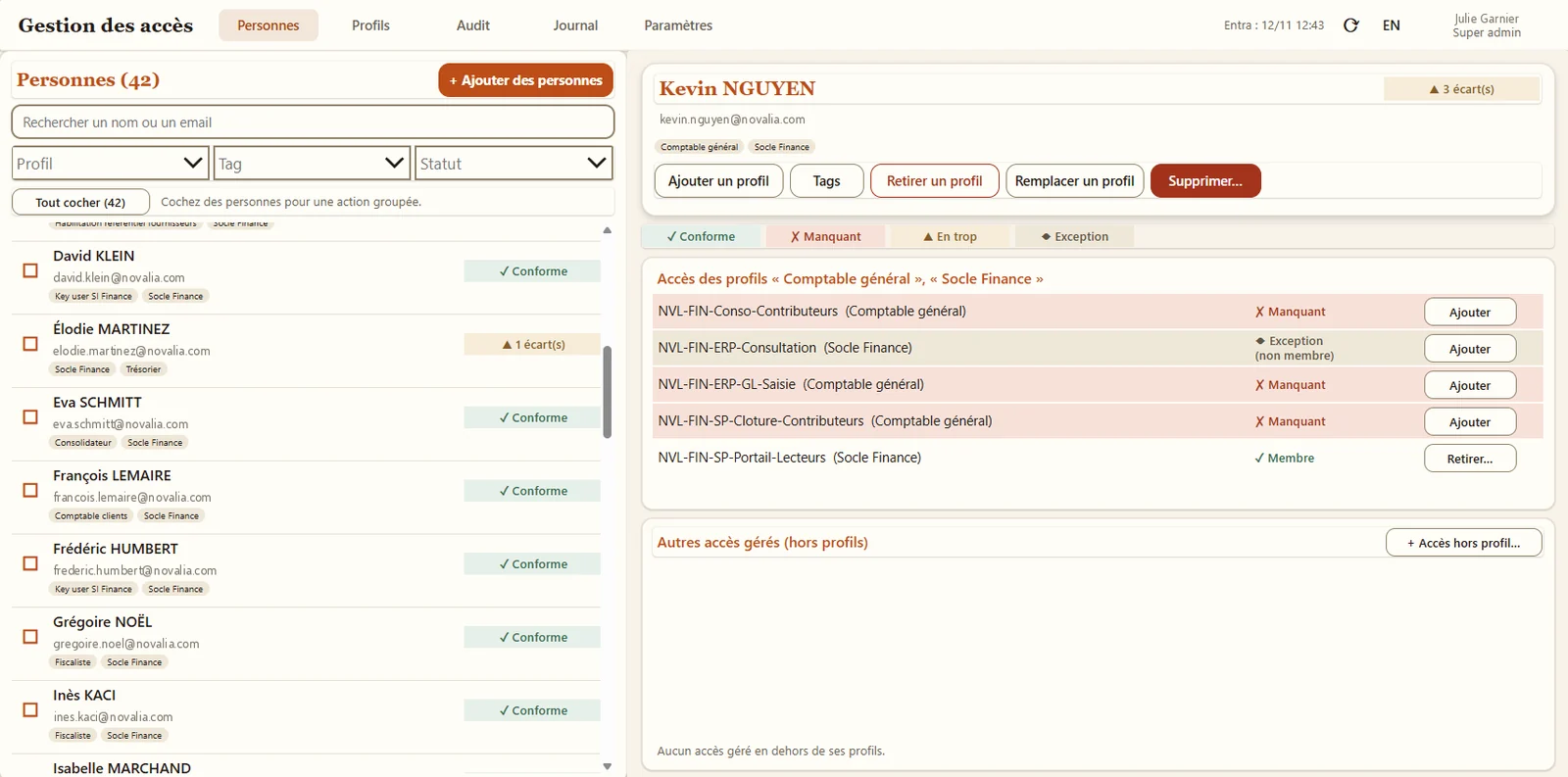
The manager picks the newcomer in the directory and assigns their profile: the security groups and Teams the job needs are granted in a single operation.


The right access, for the right people. With proof.
Joiners, leavers, interns, contractors: keeping track of who can access what quickly gets complicated. BS-User Management manages your security groups and Microsoft 365 groups through business profiles, and with them access to your Teams. You assign a profile: the app works out the access, applies it after a preview, compares it with reality and logs every operation. Inside your Microsoft 365 tenant, with no outside dependency.
# why
# joiners and leavers
These are the moments when you lose track of who can access what: a newcomer waits for their access, an intern leaves with theirs, a contractor is still in a Teams team months after the assignment ended. BS-User Management turns every move into a simple operation, previewed before it runs and logged.
The manager picks the newcomer in the directory and assigns their profile: the security groups and Teams the job needs are granted in a single operation.
Removing their profiles removes, after a preview, all the access those profiles granted. Any access given outside the app shows up in the audit.
A dedicated profile limits their access to what is useful, and a tag makes them easy to spot. At the end of the period, their access is removed in bulk, after a preview.
A profile specific to the assignment and an “External” tag: you know at any time which outside contributors can access what, and you close their access as soon as the contract ends.
# the principle
A pragmatic approach to access management: no governance programme to run, no dependency on an outside service. You start from your existing groups and Teams, define your profiles, and the tool delivers as soon as it is installed.
Business profiles made up of the security groups and Teams each role needs.
One or more profiles per person: the app works out their access.
Expected versus actual: every gap is fixed or justified by a time-limited exception.
Every operation is recorded in an append-only log.
# benefits
Assigning a person to a profile grants every Entra ID group it contains, Teams included, in a single operation, for one person or a selection.
Every change is calculated and shown before it runs, then executed operation by operation, with a report.
Expected access is compared with reality. Out-of-profile access is kept only with a reason and an end date, then removed automatically when it expires.
Each profile has its own administrators, with no Entra ID admin role and no rights over their own access.
Who, what, for whom, when, with what result. The log can be filtered and copied into Excel.
# features
The app does more than apply permissions: it reads Entra ID back, flags every gap and requires it to be fixed or justified.
Assigning a person to a profile grants them all the profile's Entra ID groups, including the Microsoft 365 groups behind your Teams. Removing a profile only removes the groups that none of their other profiles cover.
Before any change, the app displays the list of operations: nothing changes in Entra ID until you approve. Additions and removals are then executed one by one, with a report.
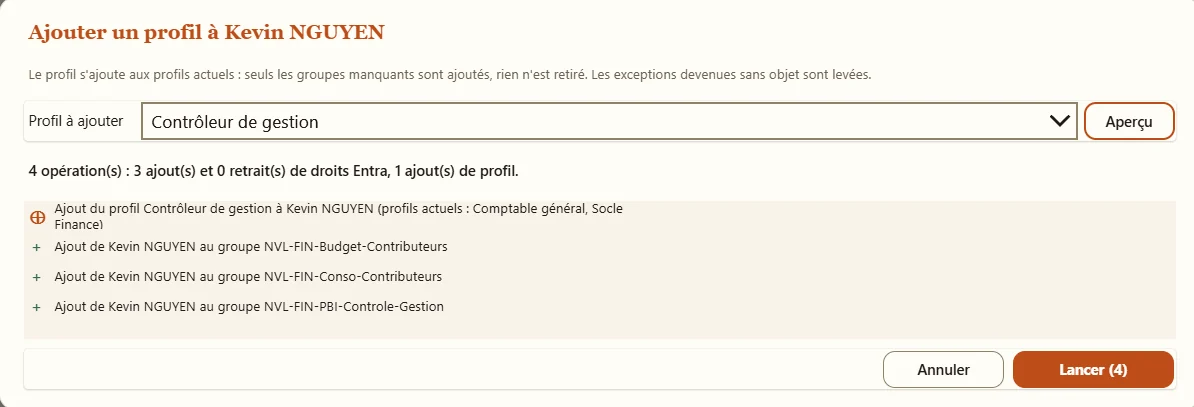
The app reads the members of managed groups and flags missing access, excess access and unknown members. Each gap can be fixed individually or in bulk, after a preview.
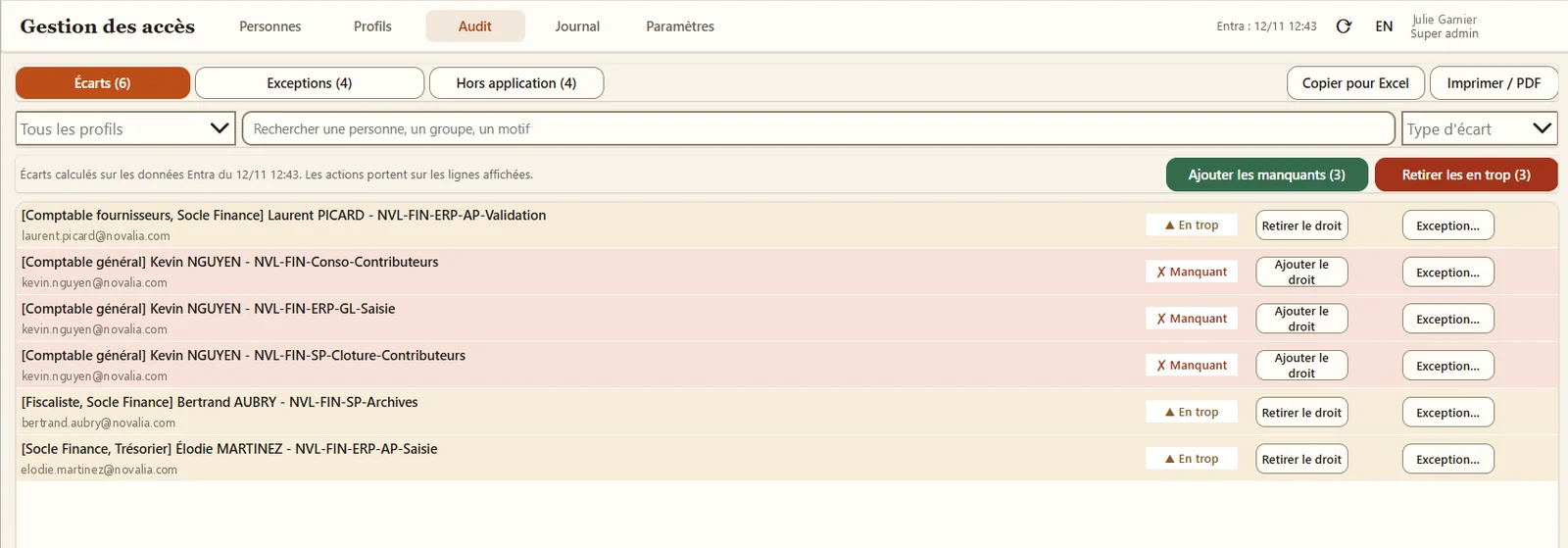
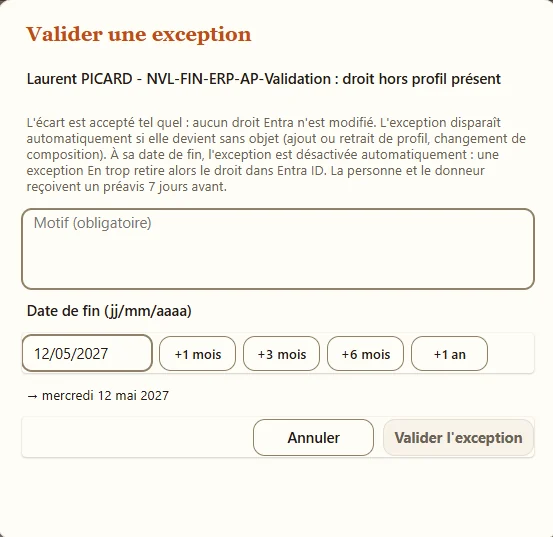
Out-of-profile access is kept only with an exception: reason, approver and end date are mandatory. Before the end date (7 days by default), the person and the approver receive an e-mail notice; on the day, the exception is disabled and the extra access removed.
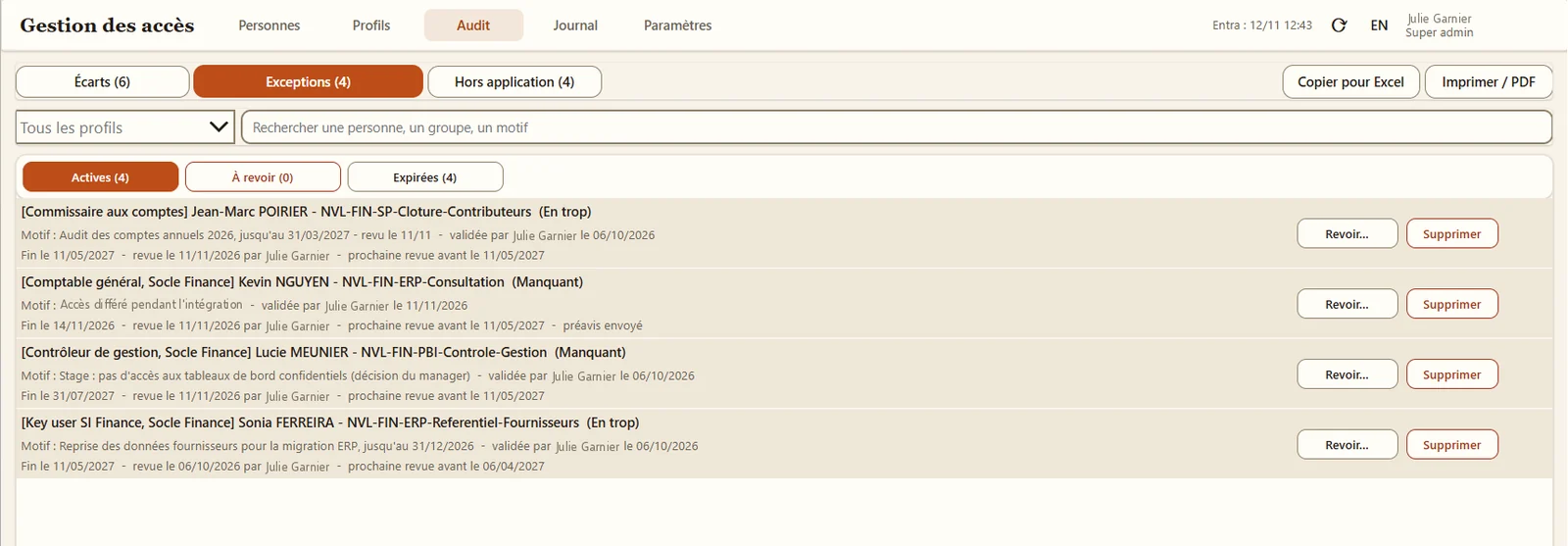
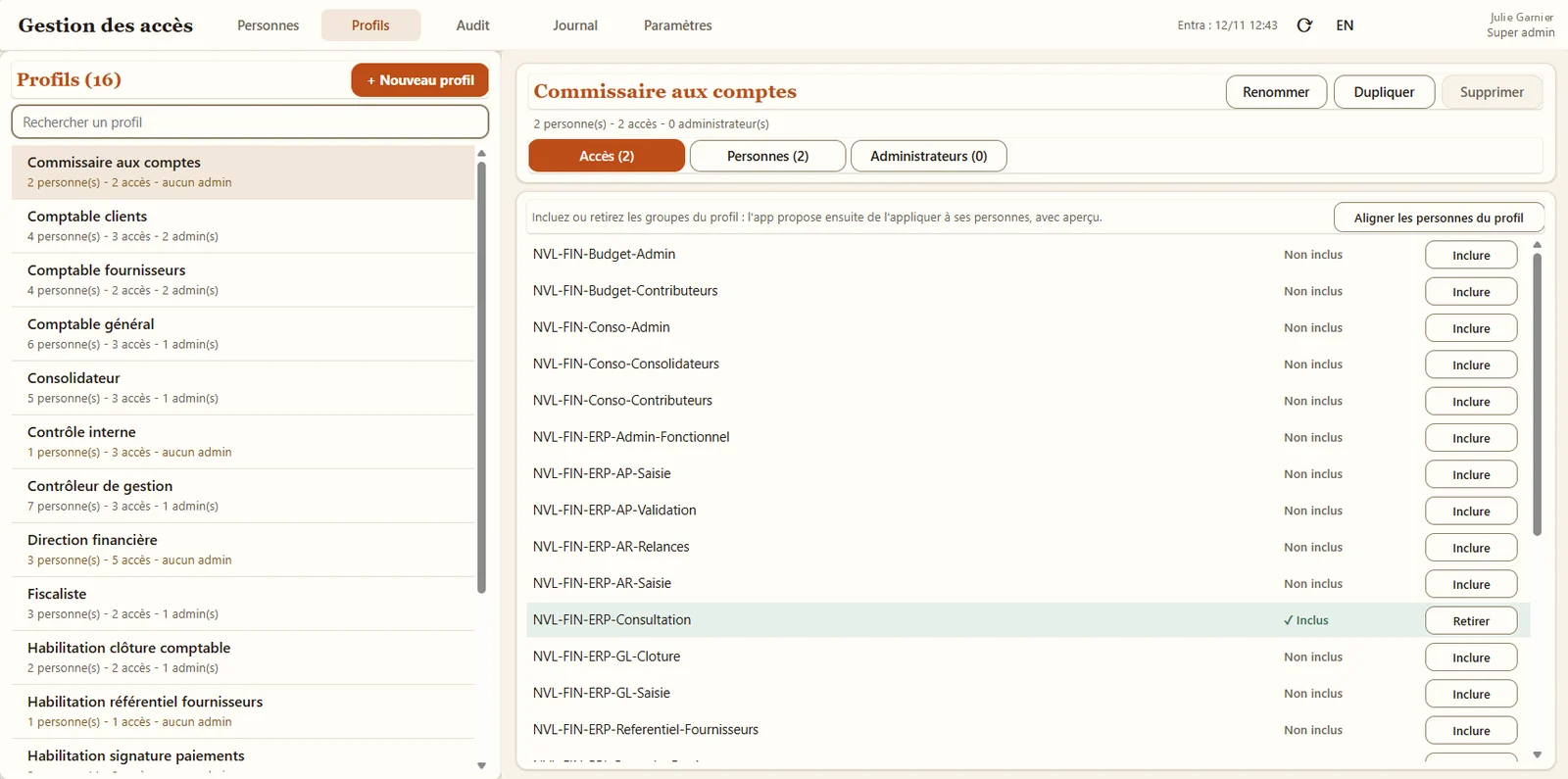
Each profile brings together the security groups and Teams a role needs. After a change to its composition, the app brings everyone in the profile into line, right away or later, with a preview.
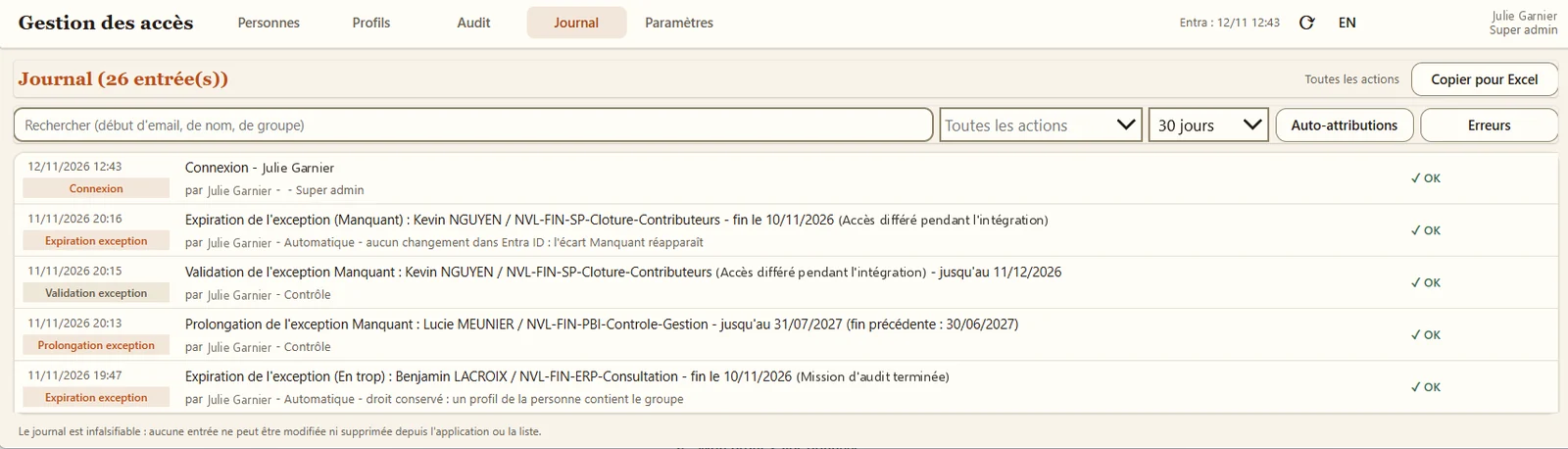
Who, what, for whom, when, with what result. The log can be filtered by action and by period, and copied into Excel for an audit.
# who it's for
For an SME, a subsidiary, a business unit or a team within a large organisation, from 20 to 500 people. Changes in Entra ID are executed by flows using a dedicated account: no user needs an Entra ID admin role.
# use cases
A contractor finishes their assignment. The project lead, who administers the “Assignment” profile, finds them with the “External” tag and removes the profile. The preview lists the groups and the project's Teams team to be removed; the lead runs it, and the exit is recorded in the log.
The person's administrator replaces the old profile with the new one. The preview shows the groups added, removed and kept. No build-up of access rights, and the log keeps the profile before and after.
In a subsidiary, the compliance officer syncs, filters the audit by profile, removes or justifies excess access, reconfirms exceptions and copies the gaps and the log into Excel.
# alternatives
| Alternative | Limitation | What BS-User Management brings |
|---|---|---|
| Manual management in the admin centre | Group by group, no view of the “why”, access rights that pile up | Profiles, preview, gap review, log |
| Access rights tracking spreadsheet | Out of step with reality, applies nothing, no proof of execution | Reads the actual state in Entra ID, applies changes, log |
| Native Entra ID governance features | Require an Entra ID P2 or Entra ID Governance licence; configuration restricted to administrators | Standard connectors, administration delegated to managers in a simple interface |
| SaaS identity governance suite | Organisation-wide project, subscription, identity data entrusted to a third-party vendor | Local control for one entity, installed in one day, no data or permissions outside your organisation |
| Custom development | Design cost, business rules to invent, maintenance | Ready-to-use app, proven business rules |
# data and security
Power Apps, Power Automate and SharePoint, with standard connectors only.
# installation and support
With fictitious data. A trial in your tenant can be considered.
Your business profiles and their Entra ID groups, a SharePoint site and an account to run the flows.
By Bret Software, in your tenant, including training for two people in managing the app.
One month of hypercare, then application maintenance on quotation for fixes, new versions and enhancements.
# frequently asked questions
No. Data is stored in SharePoint lists in your tenant and the flows run in your Power Platform environment. The app only calls Microsoft 365 services, using standard connectors. There is no Bret Software server, no third-party service and no directory permission granted to an external vendor.
The app and its flows only use standard connectors: no Power Apps Premium licence. According to Microsoft documentation, Microsoft 365 licences that include Power Apps and Power Automate cover this type of app and the flows it triggers. You just need to check that your plan includes these two services, for users as well as for the account that runs the flows.
No. Additions and removals in Entra ID are executed by Power Automate flows using a dedicated account. A manager appointed as profile administrator manages the people in their profiles from the app, with no Entra ID admin role. They only see their profiles and the related groups, and cannot change their own access.
The change shows up at the next sync, when the app opens or with a click on the sync button. A member added without a profile appears as “Excess”; a person unknown to the app appears as “Not in app”. You then choose to fix the gap, create the person with their profile, or keep the access with a justified exception.
For local access control, in an entity of 20 to 500 people: an SME or a scope within a large organisation (subsidiary, business unit, department or team). The app only reads and modifies the Entra ID groups you declare: it also works in the shared tenant of a large organisation, without touching the rest of the directory.
The Audit screen lists every gap between expected access and actual group members, and can be filtered by profile. Exceptions that are kept carry a reason, an approver and a date, and are reconfirmed during reviews. The log shows who did what, for whom, when and with what result. Gaps and the log can be copied into Excel or printed to PDF.
An accepted gap becomes an exception: reason, approver and end date are mandatory. It is reviewed at a frequency you choose, six months by default, and overdue reviews are flagged in red. A few days before the end date, the person and the approver receive an e-mail. On the day, the exception is disabled and any extra access is removed automatically.
Not by app users. The log is append-only: the app only adds entries to it, and users' SharePoint permissions let them add and read entries, without modifying or deleting them. Only the owners of the SharePoint site, usually the IT team, keep full control of the list.
The Entra ID groups you declare, and only those: the app adds and removes their members, without touching the rest of the directory. It manages cloud-created security groups and Microsoft 365 groups with assigned membership. Distribution lists, mail-enabled groups, dynamic groups and groups synchronised from an on-premises directory cannot be modified this way.
Yes. Every Teams team is backed by a Microsoft 365 group. Declare that group in the app and add it to the relevant profiles: people assigned to the profile become members of the team, and removing the profile takes them out. The app manages the team's members, not its owners.
Bret Software installs the app in your tenant in one day, including training for two people. You prepare your business profiles beforehand and provide an account for Bret Software to carry out the work. One month of hypercare follows go-live: fixes, adjustments and assistance. Beyond that, maintenance and enhancements are offered on quotation.
BS-User Management is offered as a licence per tenant or per department, on quotation. A demo with fictitious data lets you walk through the profiles, the change preview, the gap review and the log. Depending on your context, a trial in your tenant can be considered.
Demo with fictitious data: profiles, change preview, gap review and log.


