
A period in two taps
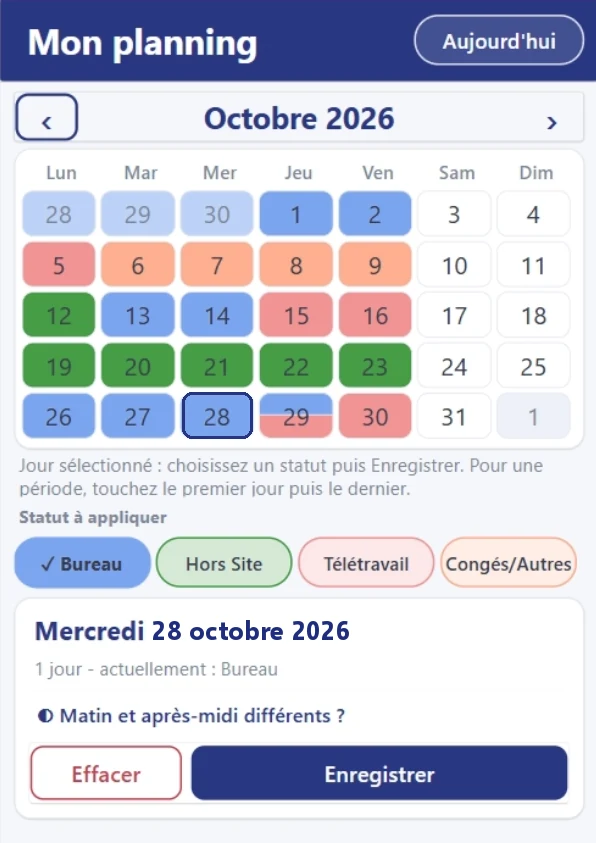
Tap the first and last day, then a status. A period can span two months, and weekends are left out automatically.

# why
# benefits
Tap the first and last day, then a status. A period can span two months, and weekends are left out automatically.
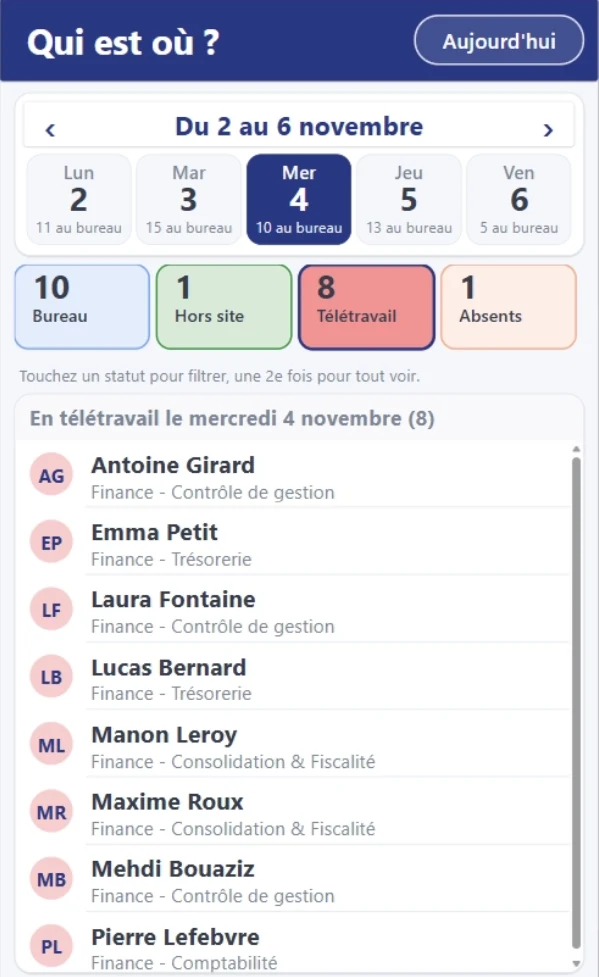
Monday to Friday: who is in the office, remote, off-site or away. Tap a person to open their schedule.
Everyone signs in with their Microsoft 365 account: no login to create and no single sign-on to set up.
The schedule is stored in SharePoint lists in your tenant, under your security and backup rules.
The Off-site status shows the country, weekends included, and the whole team can see it.
# features
Everyone states their status. The team sees its week, with the number of people in the office each day.
The whole team's week, Monday to Friday, with the number of people in the office under each day. The counters by status work as filters.
Tap the first day, then the last, choose a status and save. A day can also be split between morning and afternoon.
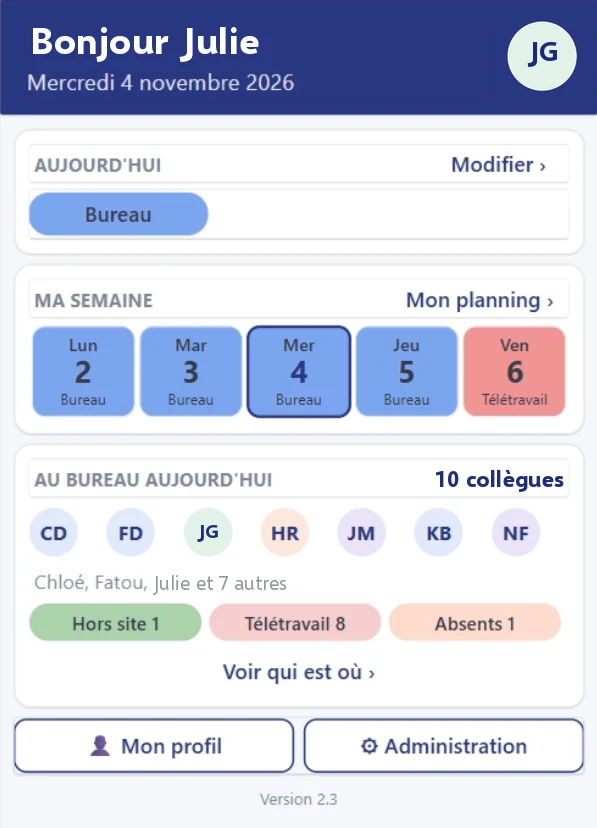
The home screen shows your status of the day, your week and the colleagues in the office. Tap a day to edit it.
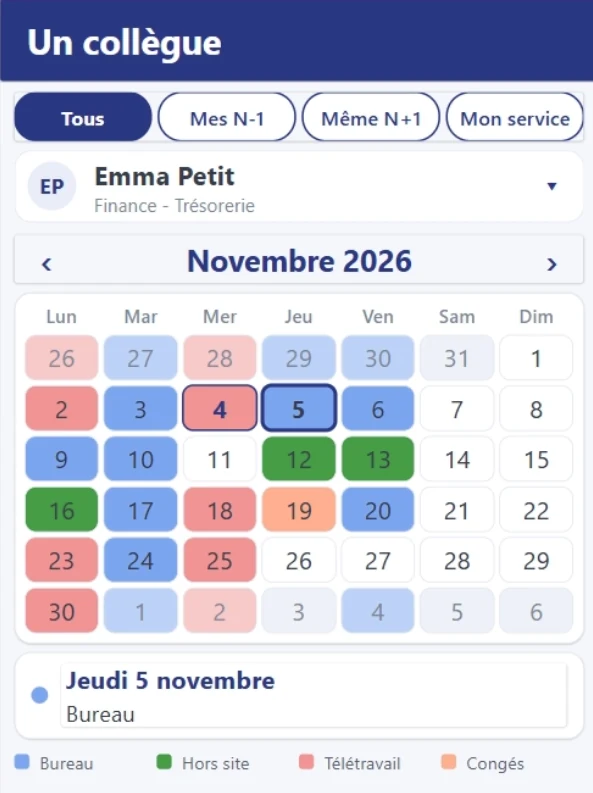
Find a person by name or department and see their month calendar, with the details of the day you tap.
# who it is for
For teams and departments working hybrid, including those who travel on assignments, in organisations equipped with Microsoft 365.
States their schedule and sees where colleagues are.
Picks the right day to bring the team together.
Keeps control of the app.
# use cases
A manager wants to run an on-site workshop. She compares the number of people in the office each day of the week and picks the day, with no poll and no exchange of messages.
An employee taps the first and last day, chooses Off-site, then the country. Saturday and Sunday are included, and the team sees the country in Who's where.
In the office in the morning, at home in the afternoon: one status for each half of the day. The home screen shows both, and Who's where counts the person in each, with the time of day.
# data and security
BS-Team Presence runs on Power Apps, SharePoint Online and Power Automate, inside your Microsoft 365 environment.
# installation and support
In a demo environment, with fictitious colleagues and schedules.
A dedicated SharePoint site, two Entra ID groups (users and administrators) and a service account. An installation sheet guides you.
Installation by scripts, first as a simulation, then acceptance testing with you.
One month of hypercare. The purge stays in simulation mode for at least a month before it is switched on.
# frequently asked questions
No. Everyone signs in with their existing Microsoft 365 account, with no extra login and no single sign-on to configure. Access is granted by a group in your Entra ID directory: adding a person to this group is enough. Their record is created automatically the first time they open the app.
In SharePoint lists in your Microsoft 365 tenant, under your security and backup rules. Bret Software has no server and stores no schedule data. We only access your environment for the work you ask for, with an account you provide and can disable.
No. The app uses two standard Microsoft connectors, SharePoint and Office 365 Users, with no Dataverse database. Microsoft 365 plans that include Power Apps and Power Automate are enough, for users and for the service account. We check your plan with you before installation, especially for frontline licences.
No. Everyone states their own status: office, remote, off-site or away. For an off-site status, only the country is given. No reason is asked for an absence: the status remains Leave/Other.
Check with your legal team. A tool that shows where employees are may require prior information and consultation of employee representatives, informing users and an entry in your record of processing activities. You remain the data controller; the Your data section shows everyone what is kept.
By default, the schedule is deleted after 365 days, and a person's record after 90 days without any day recorded. These periods can be configured. A weekly flow applies the rule in your tenant; it starts in simulation mode and deletes nothing until you switch it on.
All users of the app see everyone's schedule, since the point is to know who's where. However, each person can only edit their own rows. These permissions are set on the SharePoint lists, not only in the interface.
One day, once the prerequisites are ready: dedicated SharePoint site, Entra ID groups, service account. An installation sheet guides you through them. The scripts first run as a simulation, then acceptance testing completes the installation. One month of hypercare follows the go-live.
Yes, as an option: an Excel file or older lists can be imported at go-live. Otherwise, the app starts empty and everyone enters their upcoming periods.
The licence is perpetual, sold per band of active users, for your tenant only. An active user has recorded at least one day in the last 12 months. To go beyond, you purchase an extension; the app does not lock. Pricing is on quotation.
We show you the app in a demo environment, then look at your context: scope, licences, timeline.


